 0.11.1 Free to record and edit, $50 once to export →
Screen recordings that edit themselves.
Record once on your Mac. VeyFrame zooms into every click, smooths your cursor, and puts your camera where it belongs, so the take is ready for YouTube, or with one click, for Shorts and Reels.
Free to download · $50 once to export · macOS 15 or later · Apple silicon
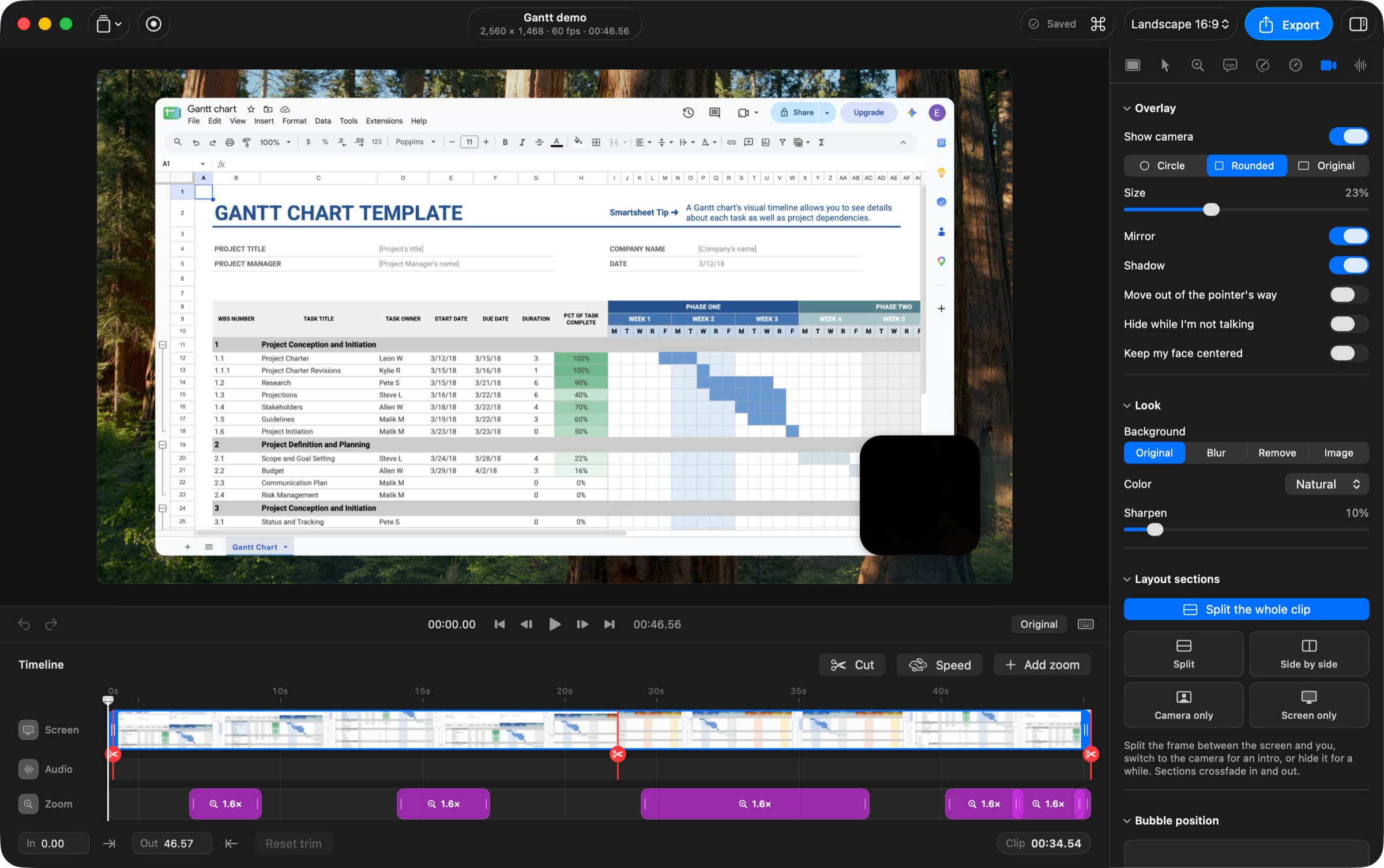
The VeyFrame editor, with the recording it made playing in the preview.
Made with VeyFrame
One recording. Every video you need.
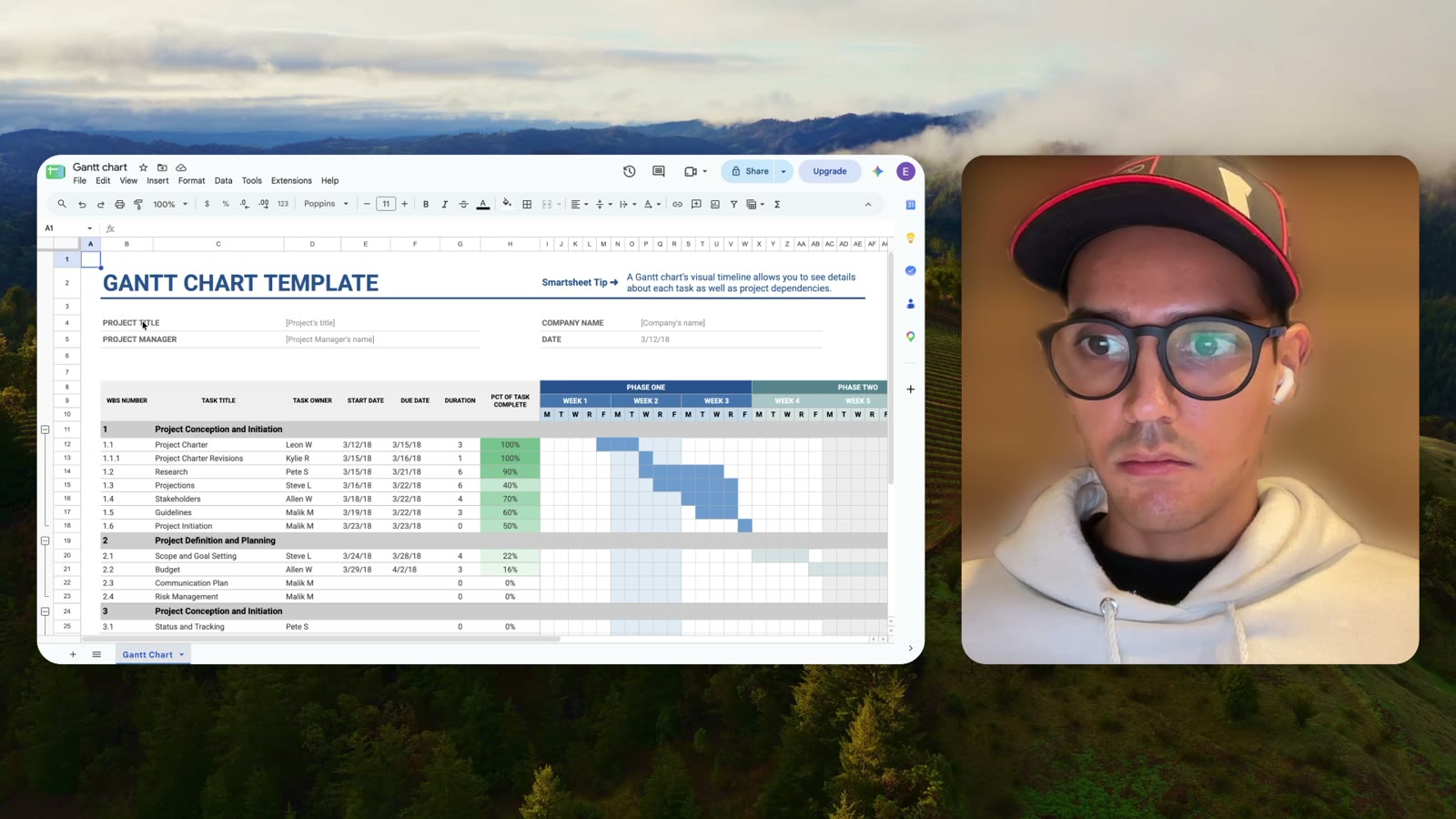
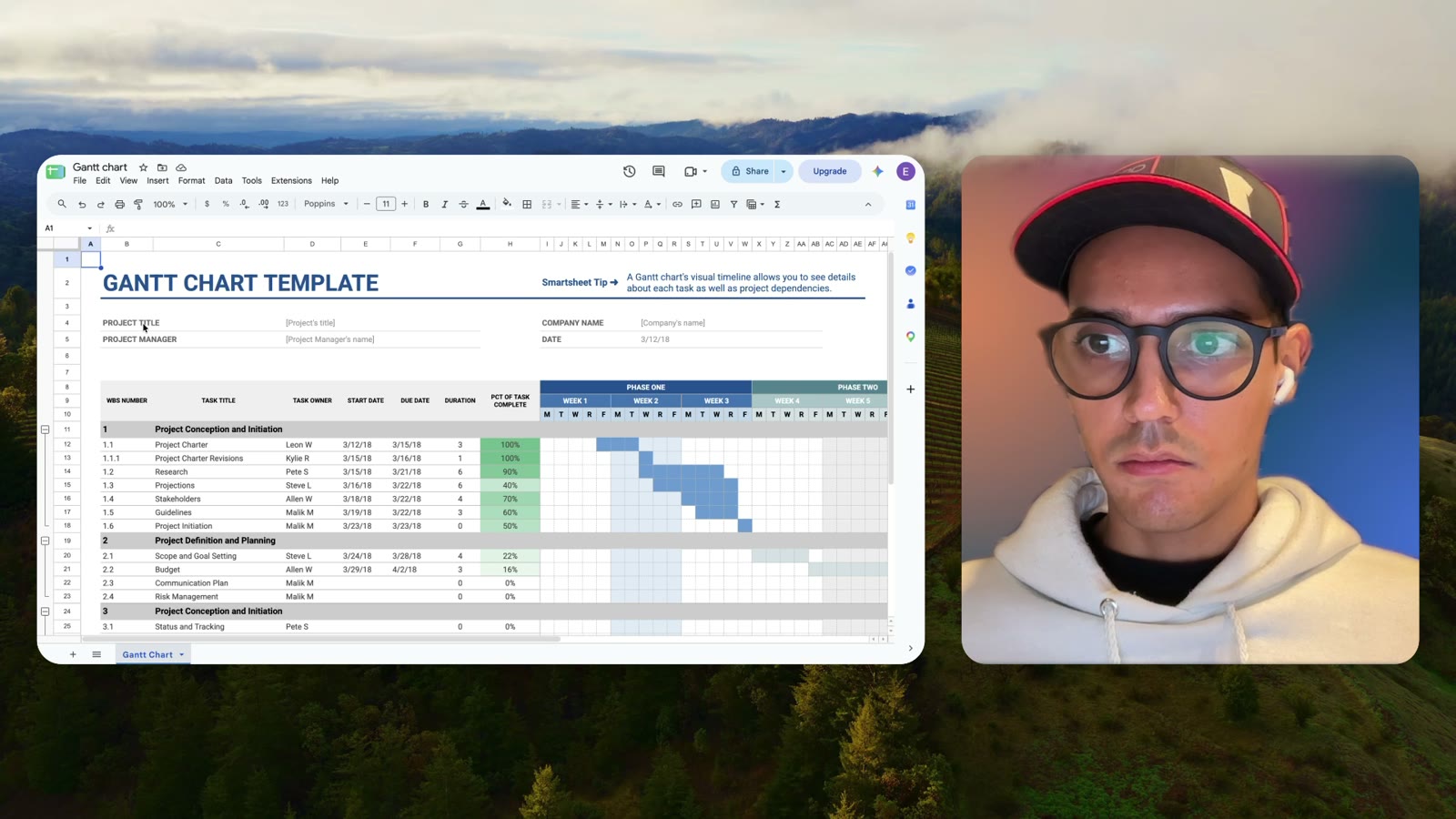
All of these come from the same 46-second take: no re-recording, no timeline full of keyframes.

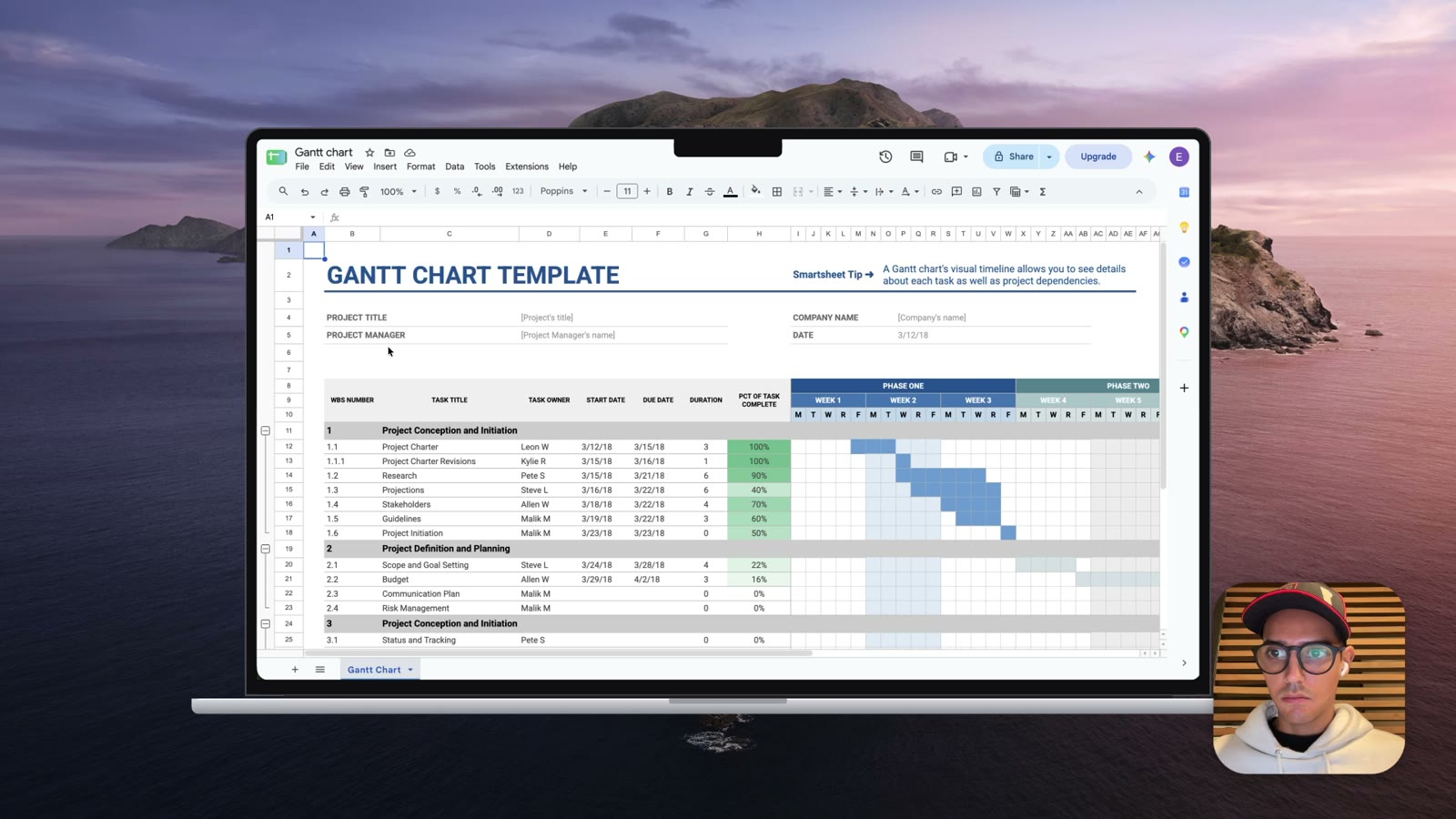
Focus and zoom
Nothing stays too small to read.
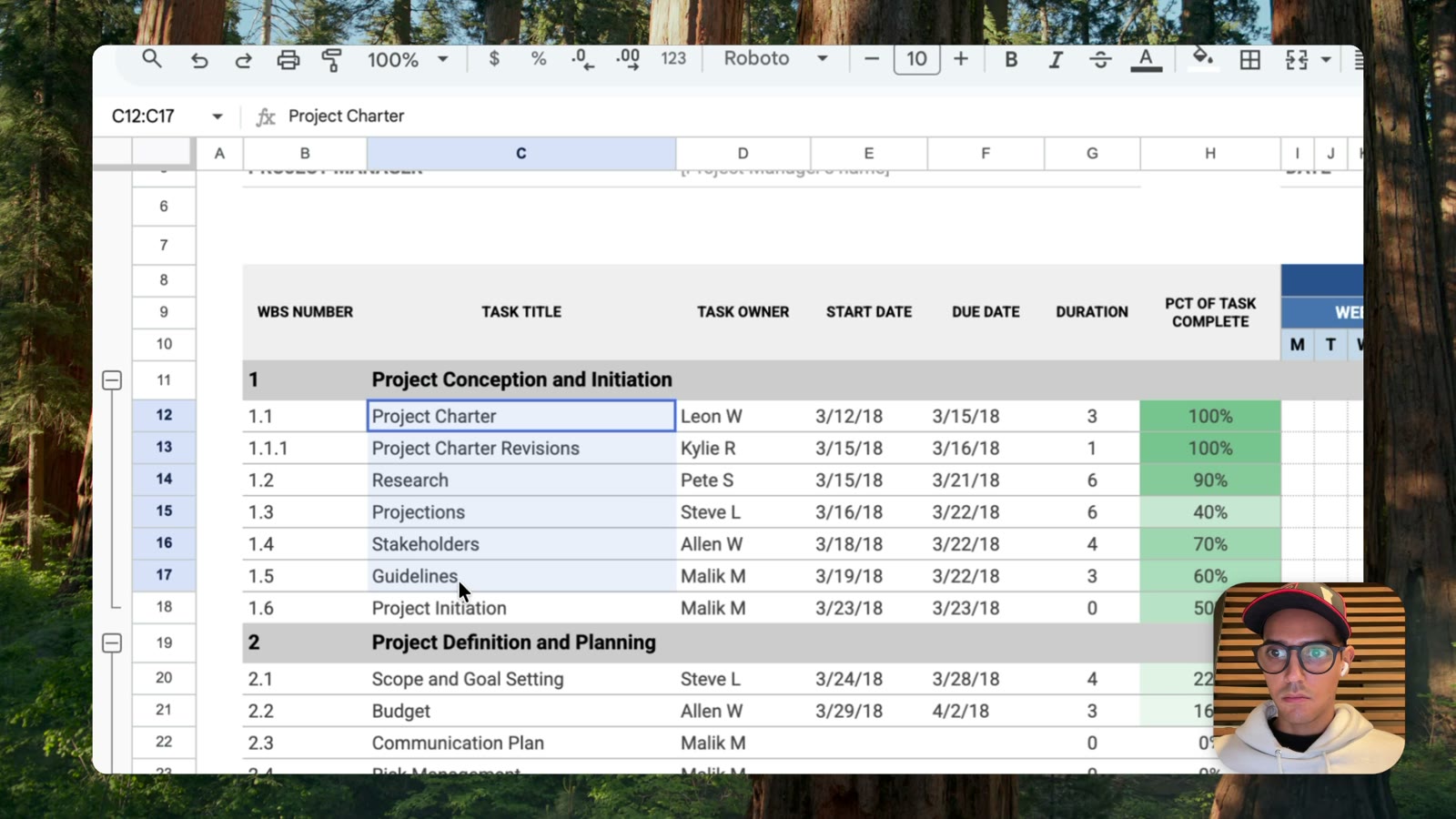
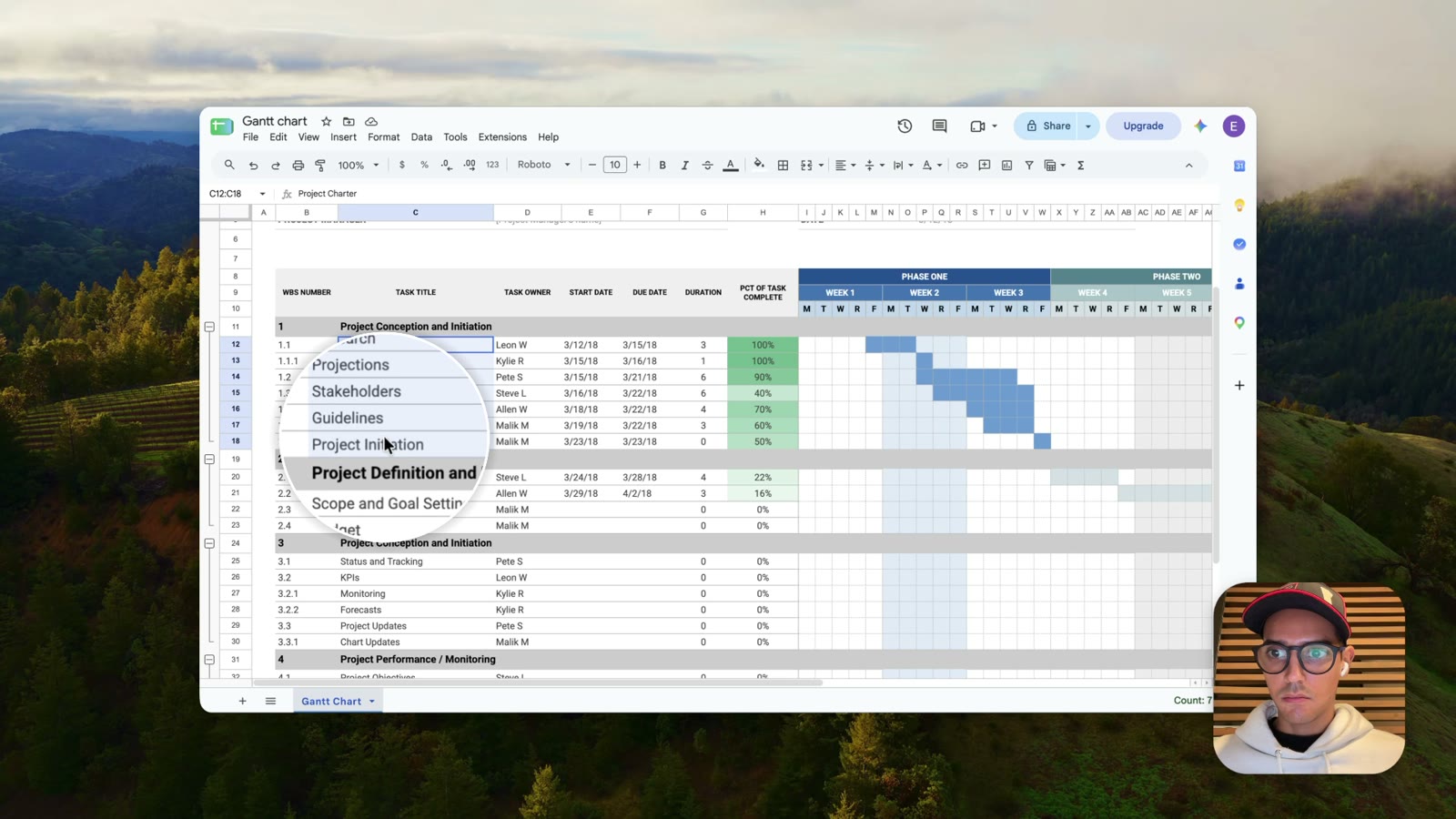
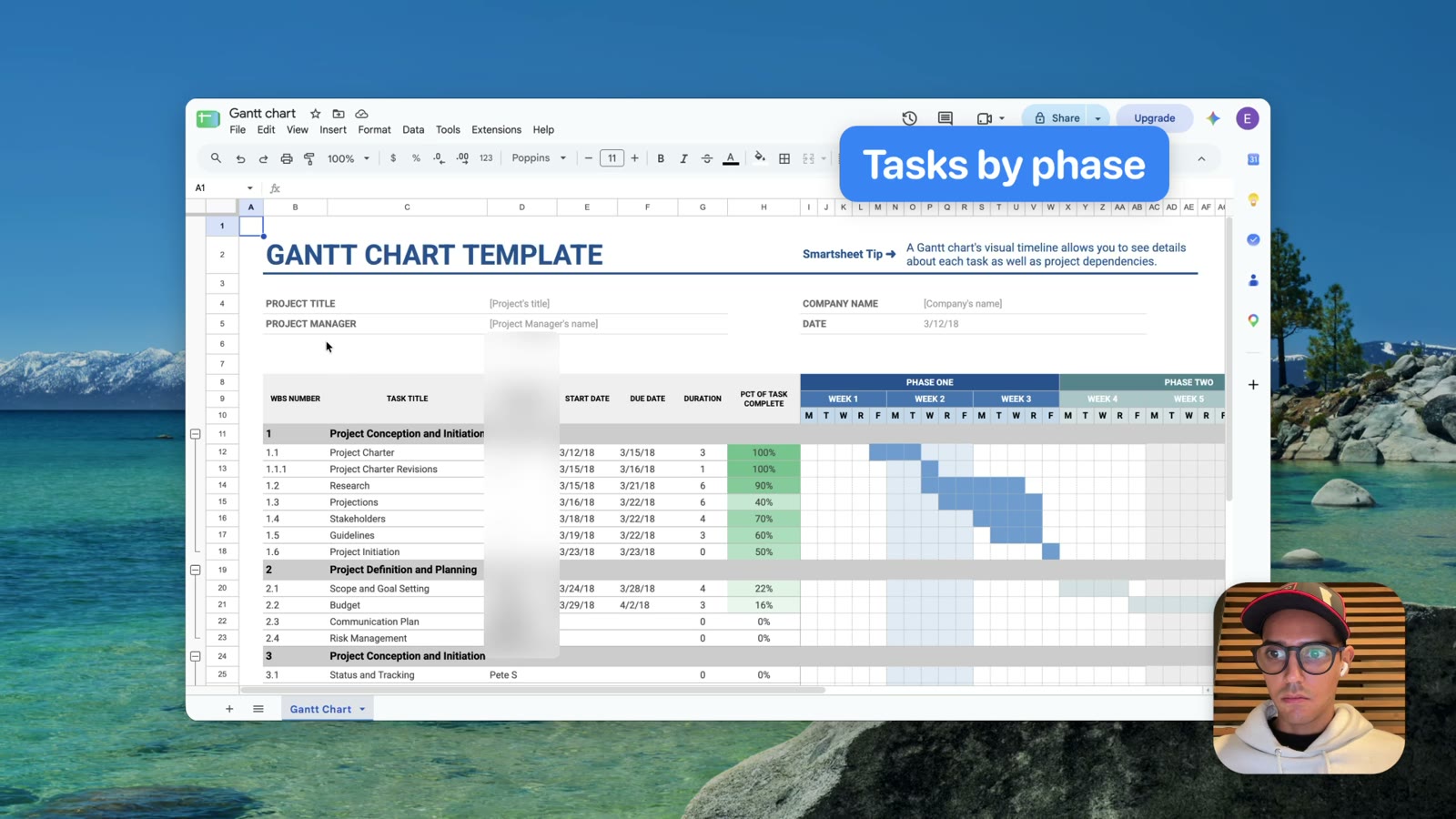
VeyFrame knows where you clicked, so it zooms in on those moments and glides between them. Every zoom is a block on the timeline you can move, stretch, or delete.
Zooms ease in just before each click and follow your pointer while you work.
Motion and cursor
Movement that feels filmed, not captured.
Raw recordings jitter. VeyFrame smooths the path, softens fast moves, and makes every click easy to follow.
Smooth cursor
Shaky hand movement becomes a steady glide, without looking artificial.
Motion blur
Quick zooms and pans pick up a natural blur, the way a camera would see them.
Click effects
A quiet circle or ripple marks every click, so viewers never miss one.
Pointer styles
Keep the real cursor, drawn sharp at any size, or switch to one of 11 styles from 25% to 500%.
Zoom speed
Fast, Normal, Slow, or Very slow eases, so the motion matches your pace.
Seamless loops
The pointer can hide while resting and glide back to its start, for clips that loop cleanly.
Style
Make it look like yours.
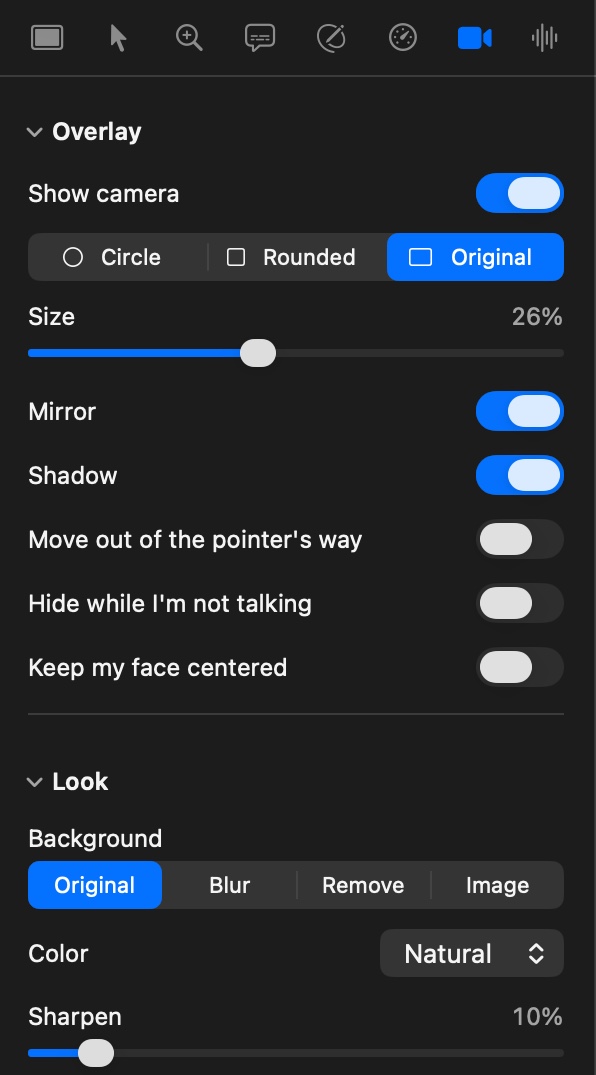
Choose what goes behind the recording, how it sits on the canvas, and how you appear in it. Save the look once and use it on every recording.
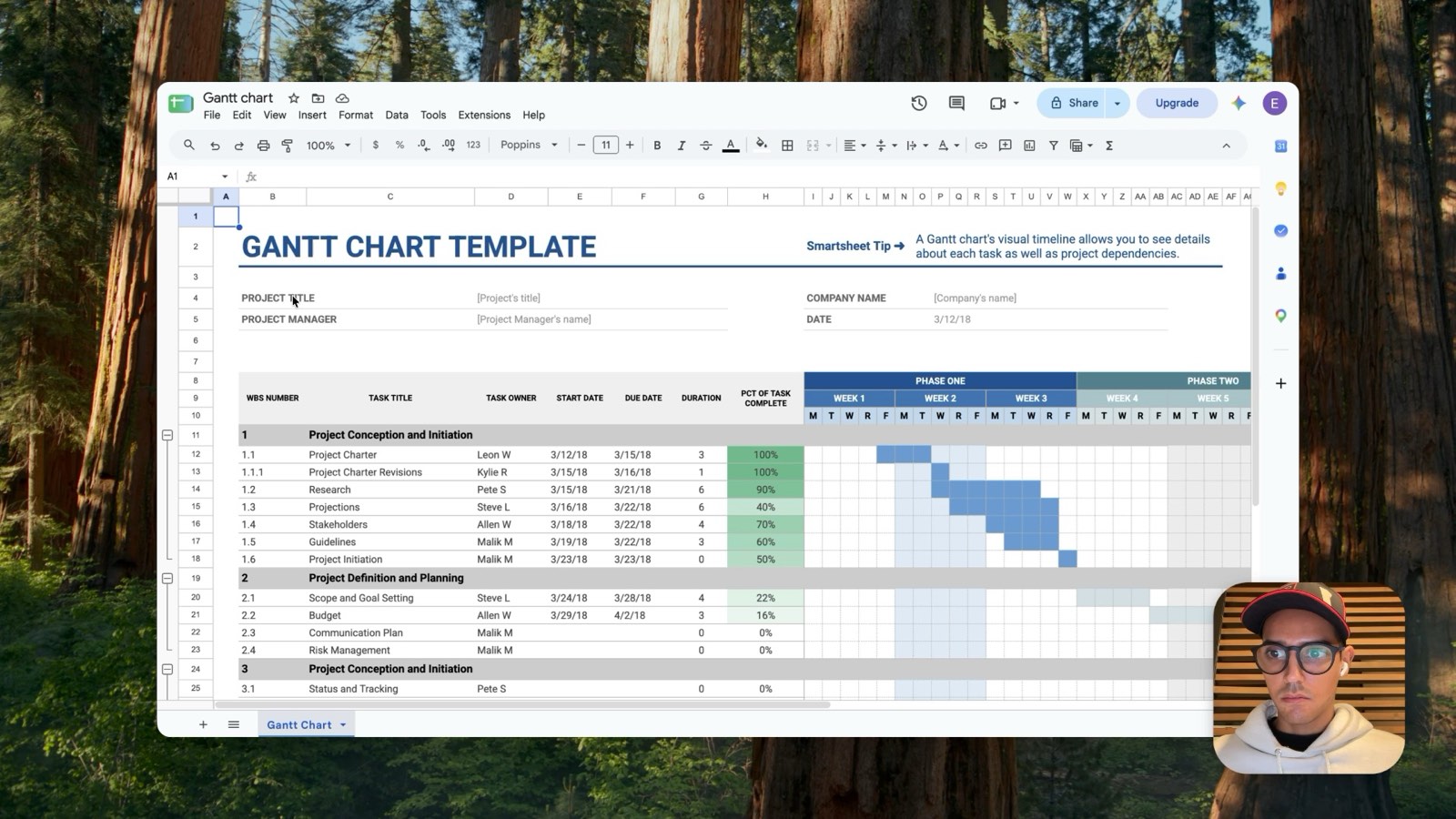
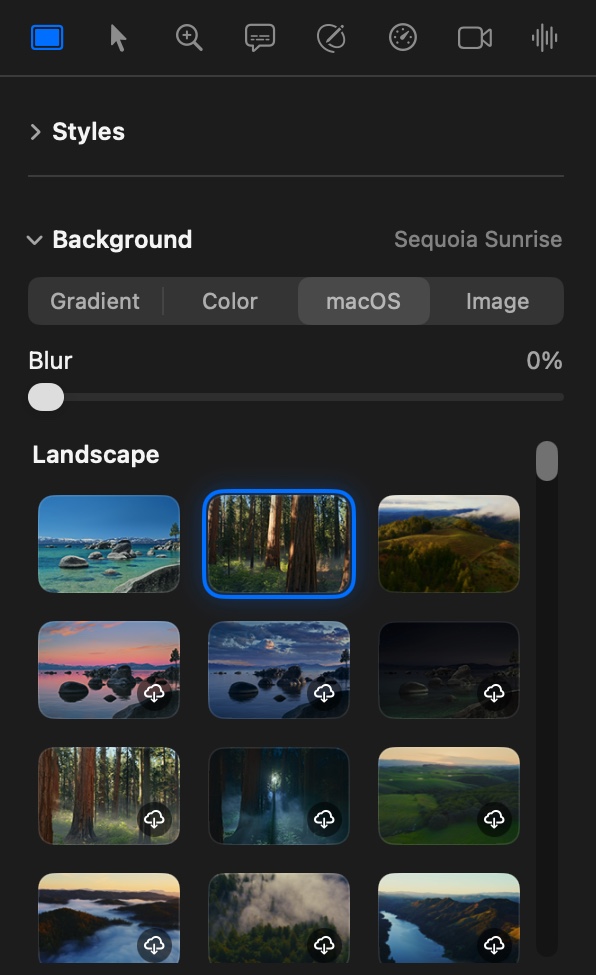
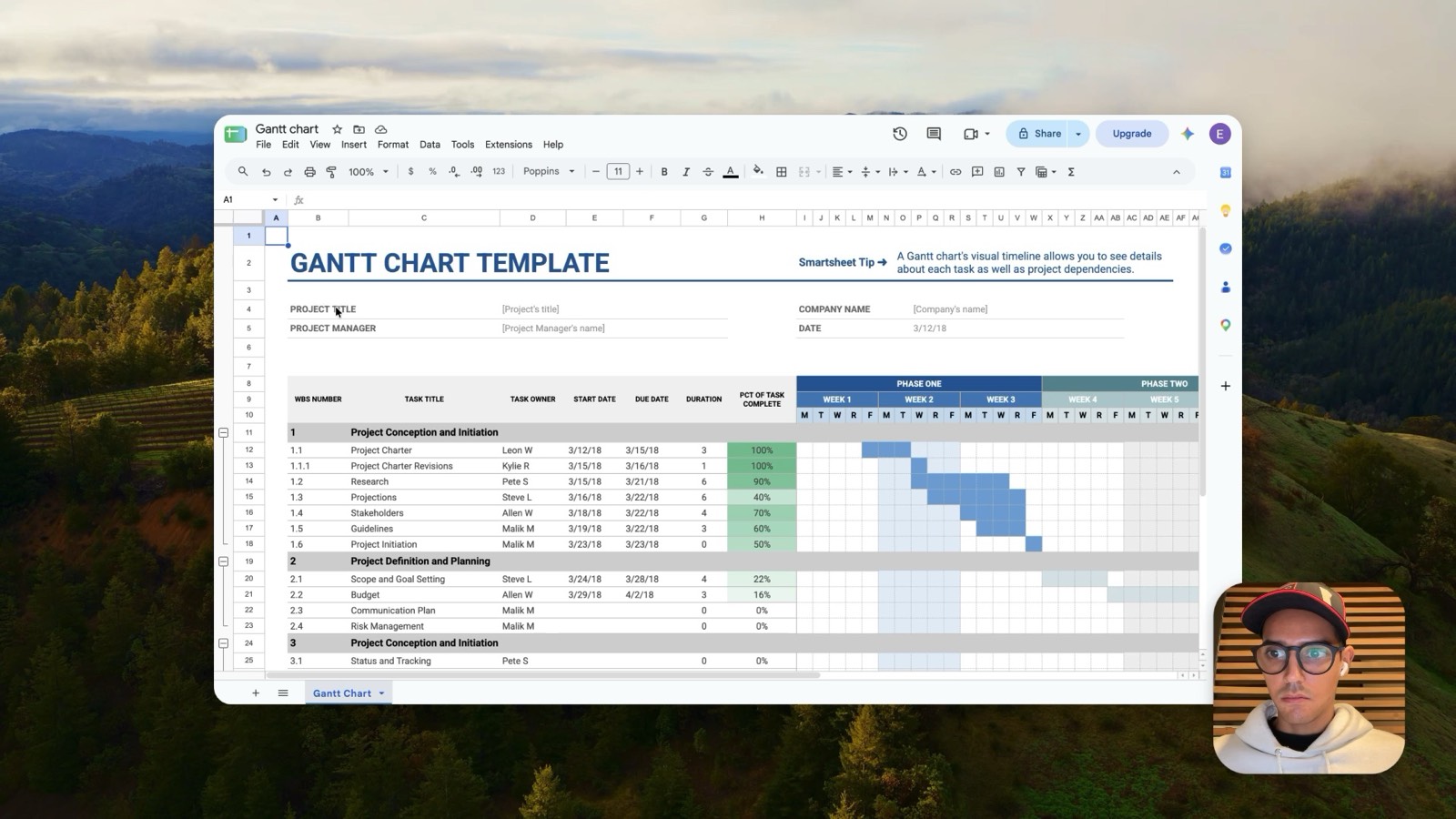
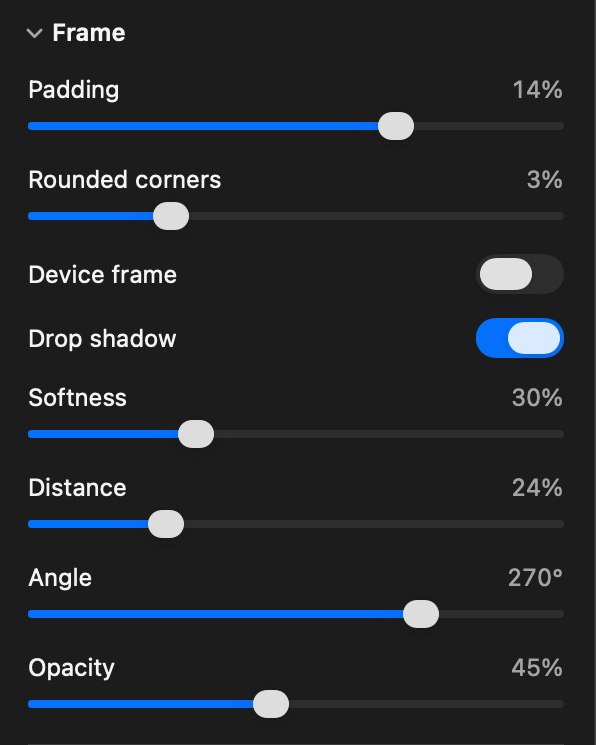
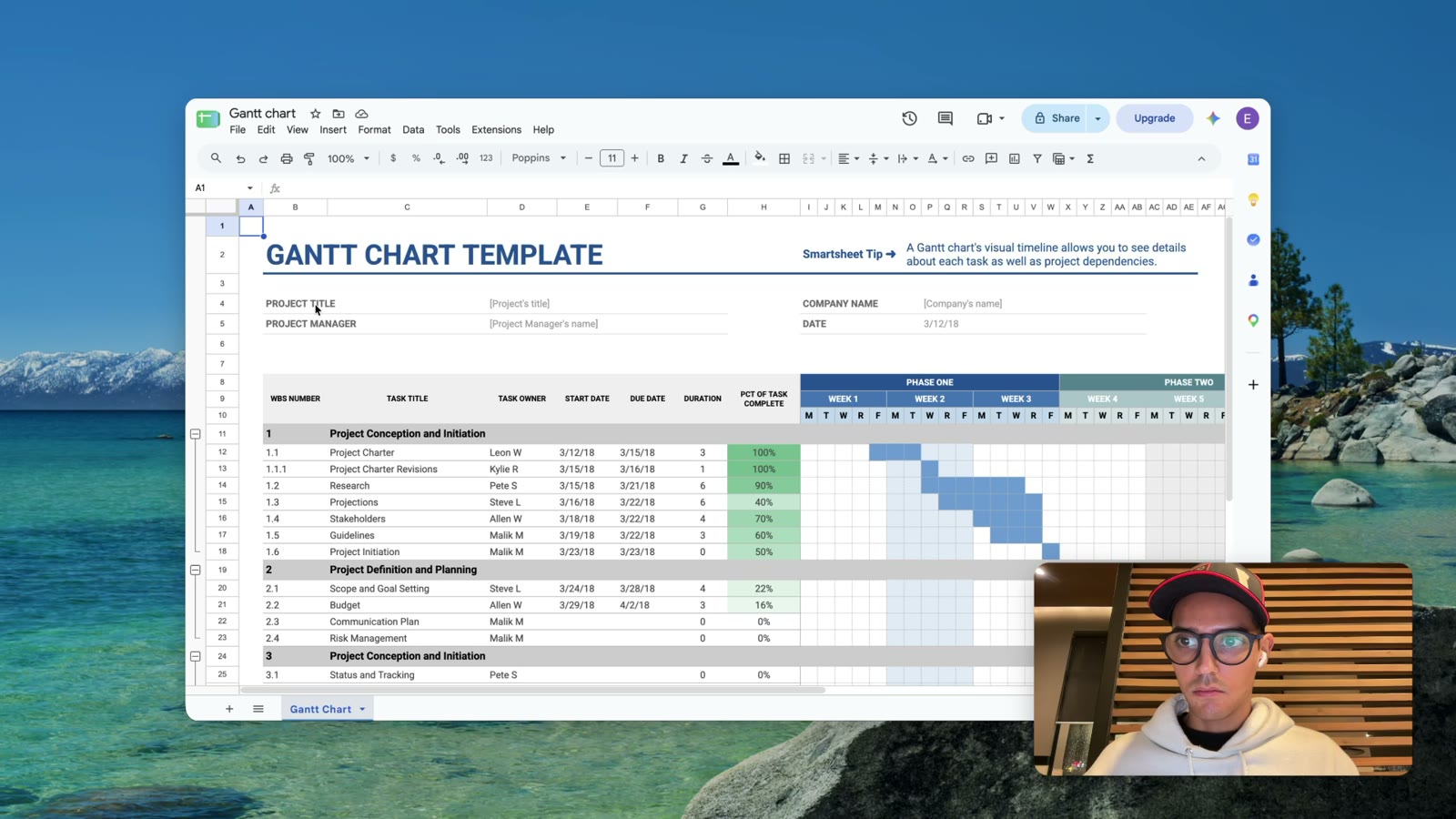
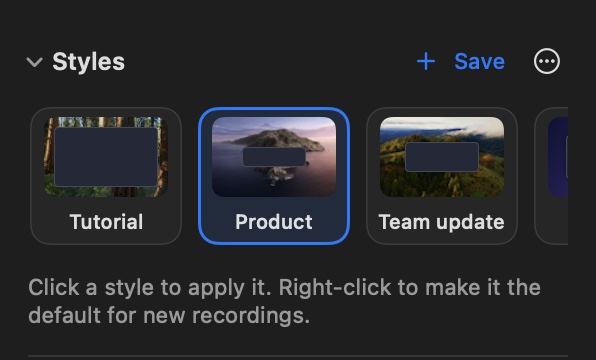
A wallpaper from your Mac, a gradient, a solid color, or your own picture, with an optional blur.
Edit fast
Cut a take in seconds.
Everything has a sensible default, and the fixes you do want are one key away.
Cuts that disappear
Press X where a mistake starts and again where it ends. It's gone, leaving a small marker you can restore.
Edit by transcript
Transcribe on your Mac, then delete words from the text to cut them from the video.
Pauses and fillers
Find long silences and “um”s in one pass, review the suggestions, and remove them together.
Speed sections
Play the slow parts at up to 8×, or speed up every stretch of typing automatically.
Captions
Captions from on-device speech recognition, with styles, word highlights, and SRT export.
Undo everything
Every change is one undo step, edits save as you work, and your original recording is never touched.
Every shape
Record once. Post everywhere.
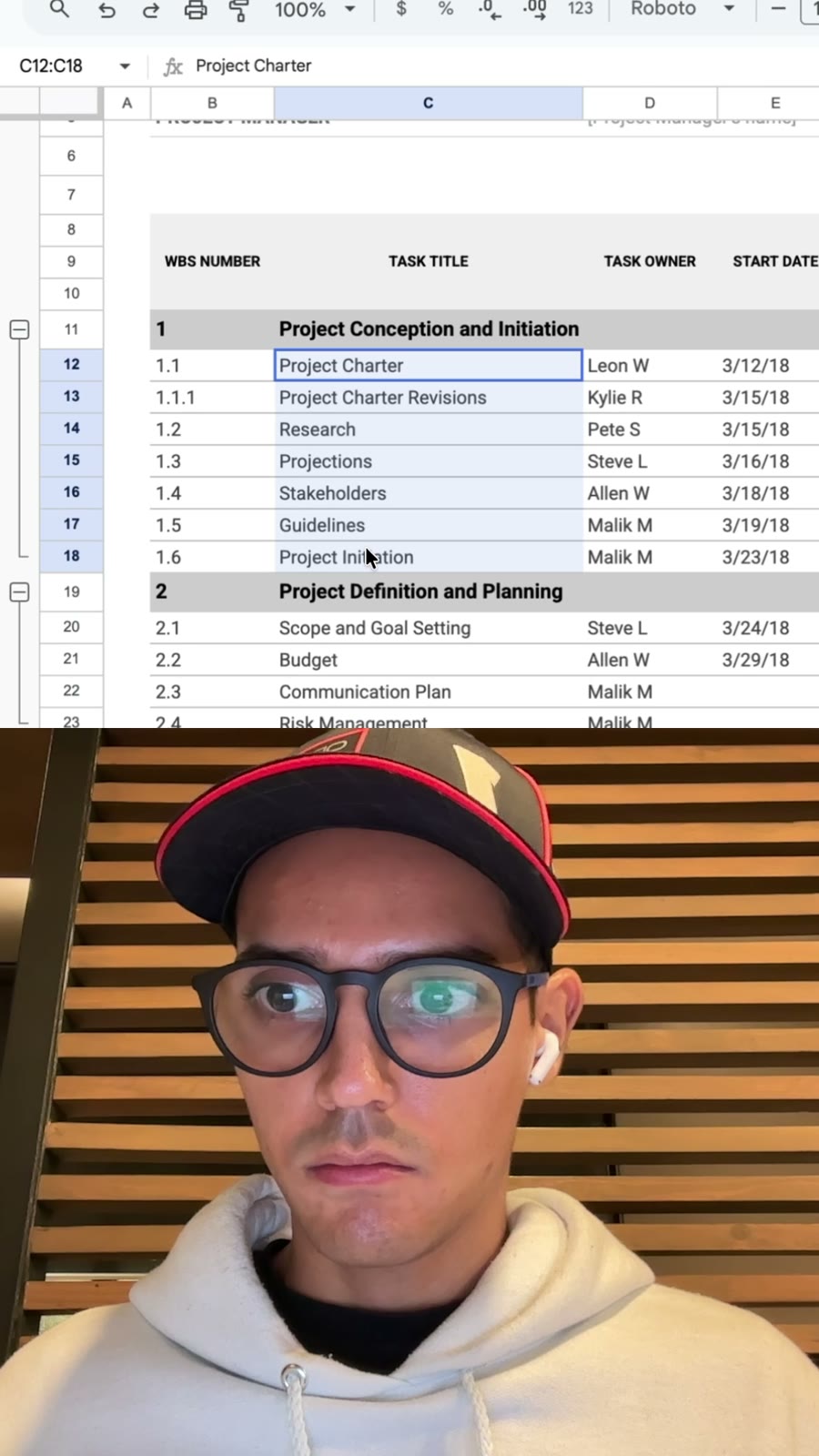
Switch the same edit to 16:9, square, or vertical. Follow framing pans with your pointer and zooms, and in 9:16, Split puts your screen on top and you below.
Camera and voice
Bring yourself along.
Record your camera, microphone, and your Mac's sound with the screen. Each is saved separately, so you can restyle or fix them later.
Layouts
Put yourself in the shot.
Mark a section on the timeline, or the whole clip, and choose how the screen and your camera share the frame. Sections crossfade in and out.
The frame cut in two, edge to edge: the screen follows the action, you fill the other half.
Camera background
Change the room behind you.
VeyFrame finds you in each camera frame, on your Mac, and changes only what's behind you. It works in the bubble and in every layout.
The camera as you recorded it.
Camera bubble
A circle, a rounded square, or the camera's own shape, with color looks, that moves out of your pointer's way.
Background removal
Blur the room, cut yourself out, or put your own picture behind you, processed on your Mac.
Layouts
Split screen, side by side, camera only, or screen only, with smooth transitions.
Clean voice
Remove noise and room echo, or give your voice a warm, even Podcast sound.
Works with your AI assistant
Ask for the edit.
VeyFrame includes an MCP server, so Claude, Codex, and other assistants can trim, cut pauses, add zooms and captions, and export for you, one undoable step at a time. It's off until you turn it on, and recording always asks you first.
find_cleanup · 6 pauses over 1.2 s
apply_cleanup · removed 9.4 s
make_vertical · 9:16, following the pointer
export · Social · vertical
Demo-9x16.mp4. Undo in VeyFrame if you want any of them back.Private by design
Your recordings stay on your Mac.
No account, no upload, no tracking. Speech recognition, voice cleanup, and background removal all run on your Mac.
Nothing leaves your Mac
VeyFrame has no cloud backend and sends no telemetry. Videos are normal files in a folder you choose.
Never lose a take
If your Mac crashes mid-recording, VeyFrame rebuilds the take the next time it opens.
A private teleprompter
Read your script from a floating prompter that never appears in the recording.
Pricing
Free to record. $50 once to export.
Try everything on your own recordings first. When you're ready to share, one payment unlocks exporting for good.
Free
$0
Download, record, and edit as much as you like.
- Record a display, window, area, or iPhone, up to 4K and 60 fps
- Every editing feature: automatic zooms, cuts, captions, camera layouts, backgrounds
- Your original recordings, as normal video files in your folder
- AI assistants, teleprompter, and crash recovery
VeyFrame license
$50once
Unlock exporting. No subscription, nothing to renew.
- Export MP4 (H.264 or HEVC) up to 4K and 60 fps, and animated GIFs
- Every shape: 16:9, vertical, square, several at once
- Combine clips into one video
- Use your key on all your own Macs
Prices in US dollars. Payment is processed securely by Wompi; your key arrives by email within minutes. Activate it in VeyFrame → Settings → License.
Questions
How much does VeyFrame cost?
Downloading, recording, and editing are free. Exporting needs a license: $50, paid once, with no subscription. See pricing.
How does the license work?
After you pay, your license key arrives by email. Enter it in VeyFrame → Settings → License (or when VeyFrame asks as you export). Activation needs the internet once; after that, VeyFrame works offline. Use the same key on all your own Macs.
Which Macs does it run on?
macOS 15 or later, on Macs with Apple silicon. Recording uses Apple's ScreenCaptureKit, so it stays light while you work.
What can I record?
A whole display, one window, or an area you draw, plus your iPhone or iPad over USB, at up to 4K and 60 fps. You can add your camera, microphone, and your Mac's sound, and pause and resume as often as you like.
Does VeyFrame upload my videos?
No. VeyFrame has no account and no cloud. Recordings, edits, and exports stay in folders on your Mac. See the privacy policy.
What formats can I export?
MP4 (H.264 or HEVC) up to 4K and 60 fps, or an animated GIF, in the recording's shape, 16:9, square, or vertical. You can export several shapes at once, then copy, share, or show the files in Finder.
Is my original recording changed when I edit?
Never. Edits are saved in a small project file beside the video, so you can change your mind at any time.
Make your next recording the polished one.
Free to record and edit. $50 once to export. macOS 15 or later.